
29 October 2026 · 9 min
Touch on Mac: design for fingers, mouse, and keyboard
Apple is bringing touch to Mac. Strong apps do not need an inflated tablet mode; they need one interaction model with generous hit areas, hover alternatives, robust gestures, and complete keyboard paths.

One screen, three different muscles
On October 28, 2026, Apple asked developers to start preparing Mac apps for touch. The accompanying Tech Talks cover touch targets, gesture recognition, scrolling, system gestures, hover, and controls that expand during direct interaction.
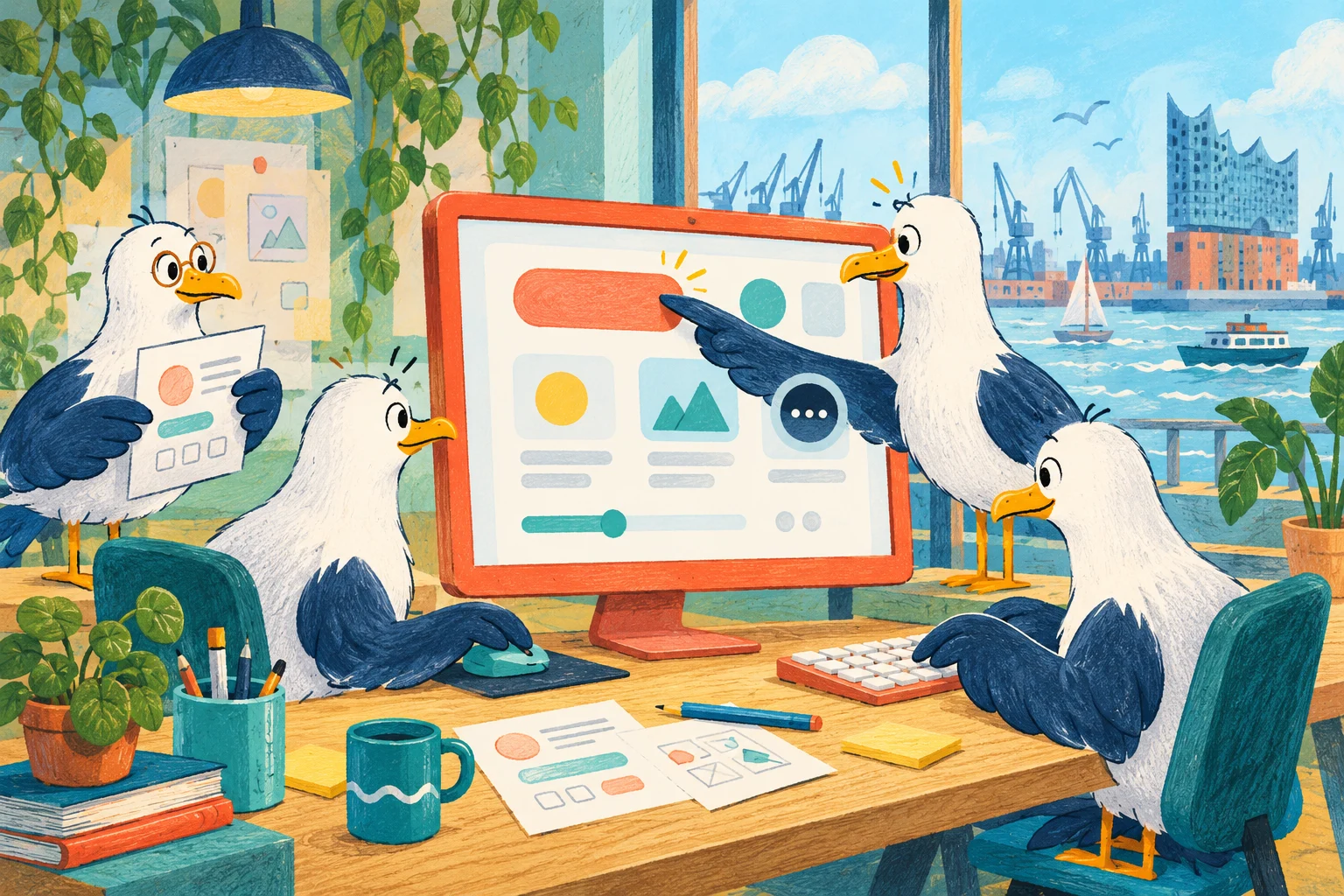
For product teams, this is more than a new device. On the same Mac, a person may work with pixel precision using a mouse, tap a button with a finger a minute later, then tab through a form from the keyboard. Each input has different strengths:
- a finger is direct, fast, and relatively imprecise;
- a mouse or trackpad is precise and can express hover;
- a keyboard is fast, sequential, and essential for many people.
The task is not “make desktop bigger.” It is to build one interface where all three paths reliably reach the same business outcome.
What Apple actually announced
Apple collects the new guidance under Get ready for Touch on Mac. The main ideas in its design and development sessions are:
- existing controls should respond to touch without losing mouse and keyboard support;
- classic mouse-tracking loops should move to control events and gesture recognizers;
- hit areas can be larger than the visible artwork;
- hover content needs a path that works without hover;
- custom gestures must not casually compete with system gestures;
- scrolling and direct manipulation should fit the input type;
- standard controls can adapt their behavior or temporarily expand for touch.
Apple is providing Xcode 27.3 beta, documentation, design resources, and Group Labs. The useful first step, however, is not a framework update. It is an inventory of current interactions.
Build one interface, not a touch mode
A separate “touch mode” sounds tidy but quickly produces two products: different spacing, navigation, bugs, and documentation. It becomes even more confusing when the layout switches as the person changes input.
We prefer one shared foundation:
- Every core function has a stable semantic control.
- The control has enough hit area for coarse input.
- Mouse and keyboard may add efficiency.
- Extra gestures are shortcuts, never the only path.
- Presentation may adapt gently to capabilities, not assumed device categories.
A dense professional interface may stay dense. It needs sensible room around critical targets, clear states, and an alternative for actions that previously lived only behind hover or right-click.
Separate visual size from hit area
A small icon does not need a tiny target. The artwork can remain 16 pixels while padding or an invisible hit region provides a much larger activation area. The interface stays visually precise without punishing fingers.
For the web, WCAG 2.2 Level AA requires targets of at least 24 × 24 CSS pixels or sufficient spacing from neighboring targets. The stricter Enhanced criterion names 44 × 44 CSS pixels. These values are not an automatic design formula, but they are a useful audit frame.
Pay special attention to:
- icon bars with delete, duplicate, and move controls side by side;
- small close buttons in modals;
- pagination and compact filter chips;
- row actions in tables;
- handles on sliders, timelines, and diagrams.
Area is not the only concern. Save and Delete need more separation than two harmless view options because a miss has a different consequence.
Hover can explain, but must not hide
Hover is useful on desktop. Tooltips explain icons, cards reveal actions, and links change state. A finger cannot hover before tapping. Anything visible or reachable only on hover has no dependable touch entry.
Our rule:
Hover reinforces information that already exists. It may make focus, selection, or context clearer.
Hover never owns exclusive functionality. The same action is available through tap, focus, a menu, or a visible control.
A project card can animate a preview on hover, but its title and link remain visible. A table row can reveal shortcuts on hover, while touch and keyboard reach the same actions through a persistent, recognizable menu button.
Tooltips are not a substitute for labels either. If an icon makes no sense without a tooltip, it often needs a better name or a visible label.
Standard gestures first, custom gestures with an exit
People arrive with expectations: tap activates, drag moves, pinch zooms, and a swipe scrolls. A custom three-finger gesture may look impressive in a demo, but it is hard to discover and may conflict with system behavior.
Apple recommends standard gestures and modern gesture recognizers. For a product team, that means:
- use tap, double tap, long press, and drag with their familiar meanings;
- do not block system gestures unless the product truly requires it;
- provide a visible alternative to complex gestures;
- show continuous feedback during an interaction;
- make cancellation and undo obvious.
A gesture is strong when it makes a known action faster. It is weak when it is the only door to an important function.
Scrolling needs a clear owner
Nested scrolling is already awkward with a trackpad. Direct touch adds another question: should the page, table, canvas, or horizontal slider move now?
Reduce conflict with:
- one primary vertical scroll container per view;
- clear axes for horizontal carousels;
- large enough slider handles;
- no drag gesture on surfaces used mainly for scrolling;
- visible boundaries around interactive canvases;
- intentional overscroll and momentum settings.
When a map scrolls, zooms, pans, and selects at the same time, it needs an especially clear model. An explicit mode such as Move map or Edit object is often easier to understand than an invisible gesture with five exceptions.
Drag and drop needs an alternative
Drag and drop feels direct, but it demands motor control and can be difficult for keyboard or assistive-technology users. WCAG 2.2 requires a single-pointer alternative for functionality that uses dragging, unless dragging is essential.
For a sortable list, also offer:
- Move up and Move down in the context menu;
- a position field;
- cut and paste;
- keyboard shortcuts with a visible focus position.
For file uploads, keep the button and file picker even when drag and drop is available. The alternative is not an accessibility appendix. It also helps anyone using one finger or moving an object over a long distance.
Preserve precision where it matters
Touch is strong for selection, navigation, and coarse manipulation. A mouse is much more precise for a vector point, video timeline, or table boundary. The interface should use those differences rather than pretending every input is identical.
Useful patterns include:
- a coarse tap selects the object, then a second step exposes precise values;
- a touch handle expands during interaction;
- numeric fields complement visual dragging;
- zoom creates room for detail work;
- snapping and guides reduce precision pressure;
- undo makes experimentation safe.
The goal is functional equivalence, not an identical micro-movement. A person must be able to reach the same result through a path that fits the input.
Keyboard and focus remain part of the design
Touch on Mac does not replace the keyboard. Many people work faster with shortcuts; others navigate entirely by keyboard for motor or visual reasons.
Every interactive control therefore needs:
- a logical tab order;
- a clearly visible focus state;
- activation through expected keys;
- Escape for dismissible overlays;
- focus returned to the trigger after a dialog closes;
- shortcuts that do not override standard behavior.
A focus ring is not a technical afterthought. It is a full visual state beside default, hover, pressed, selected, and disabled. The design system should specify it as deliberately as color and radius.
On the web, query capabilities instead of guessing devices
Websites cannot reliably identify a “touch Mac.” One device may have a touchscreen, trackpad, mouse, and keyboard at the same time. User-agent detection or rules such as “large screen means mouse” do not represent that reality.
Media Queries Level 4 defines pointer, hover, any-pointer, and any-hover for this purpose. The distinction matters:
- pointer and hover describe the primary pointing input;
- any-pointer and any-hover consider every detected pointing input;
- none of these queries proves that a keyboard is absent.
A site can increase spacing under pointer: coarse and enable extra previews under hover: hover. The baseline function still needs to work without those assumptions. Capabilities can also change during a session.
Control density through priority, not miniaturization
When hit areas grow, teams often fear that a professional interface will look like a children's app. The real problem is rarely the size of an individual control. It is the number of simultaneous decisions.
Instead of shrinking everything:
- keep primary actions visible and move rare ones into a menu;
- group toolbar actions semantically;
- remove labels only where the icon is truly learned;
- avoid five permanent icons on every table row;
- use progressive disclosure for expert features;
- prefer contextual inspectors over global panels.
Strong information architecture creates more useful density than tiny buttons. It shows the right thing at the right time and leaves enough room for the hand to hit it.
Add interaction tokens to the design system
Teams already tokenize color, typography, and spacing. Hybrid input adds another set of interaction tokens:
- minimum hit area for standard and critical controls;
- distance between destructive and primary actions;
- long-press duration and threshold;
- drag threshold and snap grid;
- focus ring, hover, and pressed states;
- scrolling and overscroll behavior;
- capability breakpoints in addition to width breakpoints.
A button component then has more than primary and secondary variants. It includes tested states for pointer, touch, keyboard, and screen readers. Touch support becomes a property of the system rather than a backlog of one-off fixes.
Cross input with layout in the test matrix
A screenshot on the new hardware proves very little. Test core journeys as a matrix:
- Open and close navigation: touch, mouse/trackpad, and keyboard;
- Complete and submit a form: touch, mouse/trackpad, and keyboard;
- Find and correct an error: touch, mouse/trackpad, and keyboard;
- Select and move an object: touch, mouse/trackpad, and keyboard;
- Cancel a dialog and restore focus: touch, mouse/trackpad, and keyboard.
Also test multiple densities and window sizes. A Mac window may sit narrow beside another application or fill the display. Touch capability says nothing about available width.
Automated tests can cover semantics, focus, and minimum sizes. Real hands still discover accidental activations, awkward reach, and scroll conflicts. Both belong in acceptance.
A pragmatic audit in five passes
1. Inventory: List every button, link, drag surface, hover menu, contextual action, and custom gesture.
2. Risk: Mark small, tightly spaced, or destructive targets. Prioritize exclusive hover and drag behavior.
3. Components: Solve hit areas, focus, pressed states, and alternatives in the design system rather than page by page.
4. Core journeys: Complete the most important user tasks with touch, pointer, and keyboard.
5. Telemetry: Watch abandonment, undo, mis-taps, repeated taps, and support cases after rollout.
This turns “support touch” into a measurable product process. The audit usually improves existing mouse and keyboard use too because states and priorities become clearer.
The best touch interface remains a good Mac interface
Touch on Mac does not require a second app. It reveals where an interface has depended too heavily on precision, hover, or hidden gestures.
The strongest answer is one semantic surface: generous hit areas behind precise artwork, hover as a bonus, gestures as shortcuts, complete keyboard paths, and components that communicate every state. The Mac stays productive with mouse and keyboard — and does not become an obstacle course when a finger reaches the screen.
Sources